Infinity Dictate Team
· 10 min read
You're typing through the pain again. Your wrists ache. Your fingers tingle. You take breaks, buy ergonomic equipment, adjust your desk height — and the pain keeps coming back. If this describes your situation, the hard truth is that no ergonomic keyboard eliminates the root cause of RSI and carpal tunnel syndrome. Only stopping the repetitive motion does.
Voice dictation is that stop. This guide explains exactly how to transition from typing to dictation when you're already injured, what to expect during the learning curve, and how to set up a workflow that keeps you productive while your wrists recover — and stay recovered.
Key Takeaways
- Typing generates thousands of repetitive wrist and finger movements per hour — dictation eliminates them entirely.
- RSI and carpal tunnel are progressive injuries: switching to dictation earlier reduces long-term damage.
- On-device AI dictation (no cloud required) means your private content stays private while you heal.
- The learning curve is 5–10 sessions — manageable even when you're dealing with pain.
- Dictation + AI auto-polish produces polished output, not just raw transcription.
Why Typing Is the Enemy of RSI Recovery
Repetitive Strain Injury (RSI) and carpal tunnel syndrome are not the same condition, but they share the same root cause: repetitive motion under sustained muscle tension. RSI is an umbrella term for inflammation and soft tissue damage caused by overuse. Carpal tunnel syndrome specifically involves compression of the median nerve as it passes through the carpal tunnel in your wrist, producing numbness, tingling, and pain in your hand and fingers.
According to occupational health research, heavy computer users generate 40,000–60,000 keystrokes per day. Each keystroke requires wrist extension, finger flexion, and sustained tension in the forearm muscles. Multiply that by five workdays per week, and you have a recipe for cumulative injury. Even the best ergonomic keyboards reduce strain somewhat — they change wrist angle, key travel distance, or key resistance — but they do not eliminate the repetitive motion itself. The motion is the injury.
The only true ergonomic solution is to stop typing. And as a side benefit, dictation at a speaking pace of 120–150 words per minute actually produces more output than typing while requiring zero wrist movement. You don't give up productivity by switching — you often gain it.
What Voice Dictation Actually Replaces
It's important to be clear-eyed about what dictation can and cannot replace. Dictation excels at any task that involves producing prose: emails, documents, meeting notes, reports, journal entries, long-form writing, messages, and client communications. These tasks typically account for the majority of keyboard work for knowledge workers.
Dictation is less suitable for: complex spreadsheet data entry (where tab navigation and formula entry dominate), advanced code navigation (though it can dictate code comments and documentation effectively), and password entry. For most knowledge workers, dictation can typically handle 60–80% of keyboard work for prose-heavy roles with no meaningful productivity loss.
The remaining 20–40% can be managed with voice commands for navigation, brief keyboard shortcuts that don't require sustained wrist engagement, or short targeted typing bursts during recovery. The goal is not zero keyboard use from day one — it's a dramatic reduction in the daily repetitive load. For a software comparison to find the right tool for your Mac, see best voice dictation software for Mac.
Making the Transition When You're Already in Pain
The hardest part of transitioning when you're injured is that learning a new tool adds cognitive load at the worst possible time. You're already dealing with discomfort, frustration, and probably some anxiety about your ability to work. Here's how to minimize the friction.
Start with the lowest-effort task. Don't try to dictate a complex report on day one. Start with short emails or brief notes. Something you'd normally write in three minutes. The goal is to get repetitions, not volume.
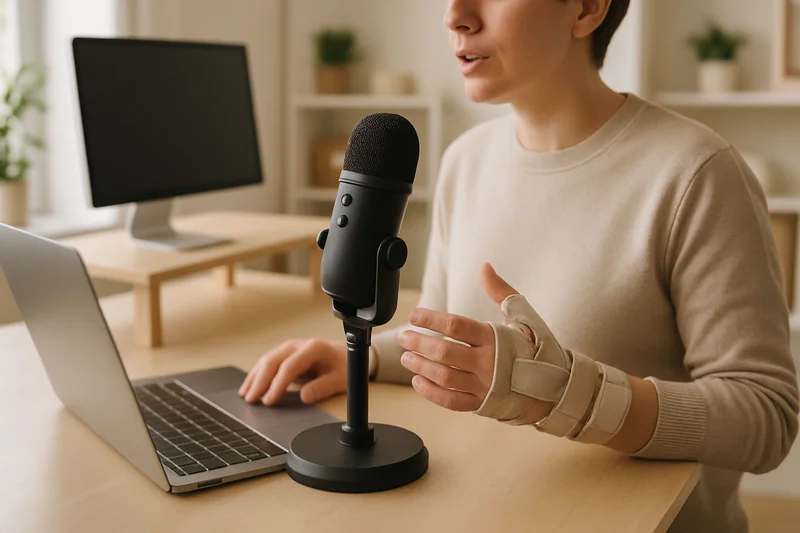
Use a quality external microphone. A USB condenser microphone or a clip-on lavalier mic placed at desk level means you never need to project your voice or hold anything. Accuracy goes up, fatigue goes down.
Set up a one-shortcut activation. Configure your dictation tool to start and stop with a single keyboard shortcut — one key, pressed once. This minimizes the keyboard interaction required to use the tool. Better yet, use a foot pedal or voice activation to start recording without any hand movement at all.
Give yourself permission to be slow at first. A rough dictated email that takes twice as long as usual is still infinitely better than a well-crafted email that leaves you in agony. The speed comes later. For the email workflow specifically, see how to dictate emails faster once you're past the initial learning curve.
Microphone Setup for RSI Users
The right microphone setup is especially important for RSI sufferers because you should never need to hold, adjust, or manipulate the microphone. The whole point is hands-free operation.
The built-in Mac microphone works, but it produces lower accuracy in noisy environments and picks up keyboard and desk sounds. For RSI users, the better options are:
USB condenser microphone on a desk stand. Place it 12–18 inches from your mouth, pointed at your face. You sit, you speak, it captures your voice accurately. No hands required after initial setup.
Clip-on lavalier microphone. Clips to your collar or shirt. No desk space required, no adjustments needed, hands completely free. Ideal for people who move around or work in varied positions.
Headset with built-in microphone. A wireless headset keeps the microphone close to your mouth regardless of head position, improving accuracy without any desk footprint.
Key rule: once you place the microphone, you should not need to touch it again during a work session. Set it up once, activate dictation with a shortcut or voice command, and speak. That's the ergonomic ideal.
The Learning Curve When You're Hurting
This section is worth being honest about: learning anything new when you're in pain is harder. Your patience is lower. Your tolerance for frustration is diminished. The normal awkwardness of dictation — the stumbled sentences, the transcription errors, the need to speak your punctuation — can feel more irritating than it would under normal circumstances.
The mindset reframe that helps most: you're not choosing between dictation and typing. You're choosing between dictation and being unable to work at all — or working through pain that compounds daily. The awkward phase of dictation is 5–7 days. RSI recovery without behavior change can take months, and often doesn't happen at all if the triggering behavior continues.
Starting today, even imperfectly, is better than waiting until the pain goes away. The pain won't go away on its own while you continue typing. For a deeper look at the psychological adjustment to dictation — why it feels strange and how to push through — see why dictation feels awkward.
Long-Term RSI Management with Dictation
Dictation is not just a recovery tool — it's a prevention tool. Knowledge workers who switch to primary dictation permanently eliminate the root cause of typing-related RSI. The inflammation heals, and it stays healed because the aggravating stimulus is gone.
Combine dictation with a few supporting practices for best results. A standing desk or sit-stand converter reduces overall static postural load during the workday. Regular breaks using the 20-20-20 rule — adapted to include putting your hands down and away from the desk entirely every 20 minutes — further reduces cumulative strain. Voice commands for navigation and scrolling reduce mouse load on the wrist and forearm as well.
One note: if attention and focus challenges also make keyboard work harder, dictation addresses those too. The dictation software for ADHD article covers the significant overlap between RSI-driven dictation adoption and ADHD-related writing friction — the strategies compound well.
What to Expect After Two Weeks
By the end of two weeks of consistent dictation use, most users report three things. First, wrist pain typically stabilizes — it stops getting worse because the daily aggravation has been removed. Healing is slow, but the trajectory changes.
Second, dictation speed approaches 80–90% of typing productivity for prose tasks. The first week is the hardest. By week two, most people are producing emails and documents at or near their normal output rate — just without the physical toll.
Third, most users report that they want to keep using dictation even after recovering, because the output quality with AI auto-polish is comparable to typed output and the physical cost is zero. The ergonomic benefit turns out to be a gateway to discovering genuine productivity advantages.
For a broader look at setting up and optimizing your full dictation workflow, the complete guide to AI voice dictation covers everything from software selection to advanced workflow patterns.
Conclusion
For anyone with carpal tunnel or RSI, the question isn't whether to switch to dictation — it's how soon. Every day of continued typing is another day of aggravation to an injury that heals slowly. Voice dictation, especially with AI auto-polish to clean up spoken drafts, produces output comparable to typing with zero wrist load. The transition takes about two weeks. The relief starts much sooner. Your wrists will thank you.